Top 12 Microsoft Word CV templates
A curriculum vitae (CV) is like a resume because people use it to apply for jobs and academic positions.
A CV template is a preformatted document that provides professional designs and all the structure for your CV. That way, all you have to do is fill it in with your information to write your CV!
Our team of career experts selected these 12 as the best Microsoft Word CV templates.
Balance
Why this MS Word CV template works:
This template prominently features the education section. This is especially helpful if you lack work experience or are applying for an academic role, position or opportunity.
Refined
Why this MS Word CV template works:
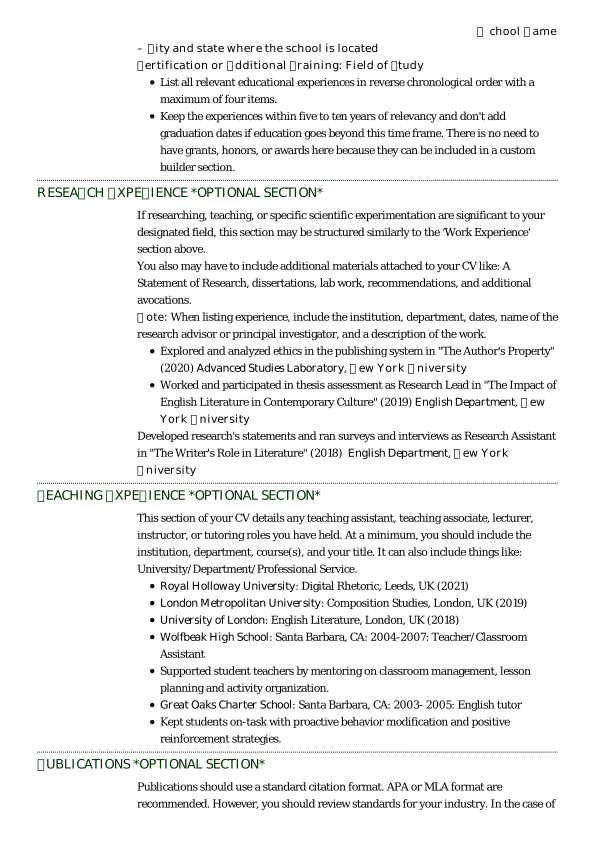
This CV has a classic design and uses Times New Roman font. Its timeless appeal makes it well-suited for traditional professions like academia, law and medicine.
Precision
Why this MS Word CV template works:
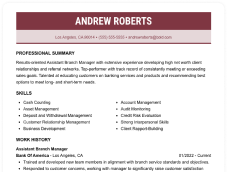
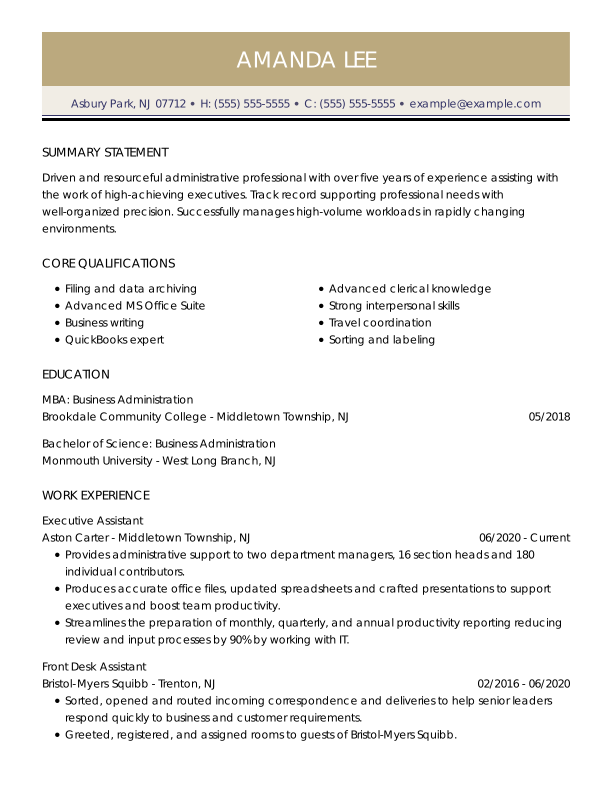
This CV uses various colors and light gray tones to emphasize your work experience rather than the details. This makes it easier for hiring managers and recruiters to scan.
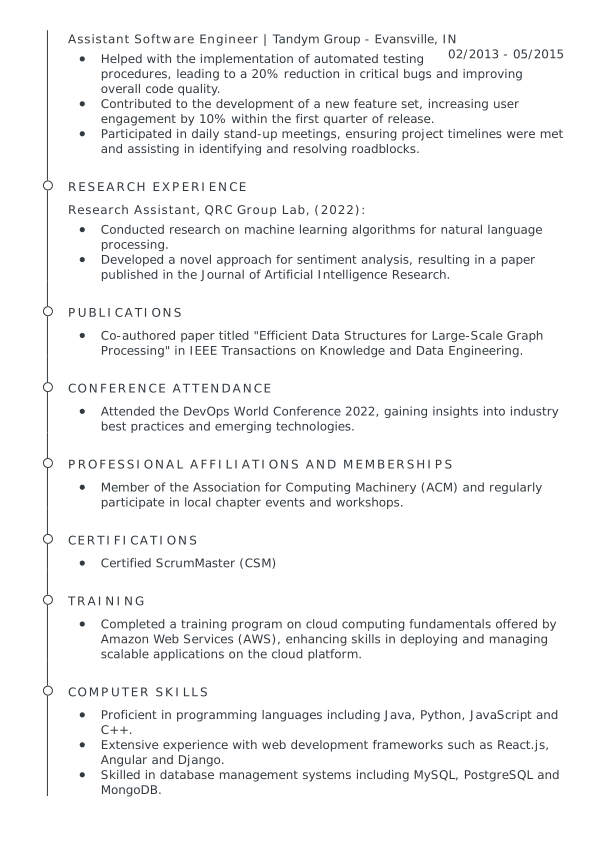
Linear
Why this MS Word CV template works:
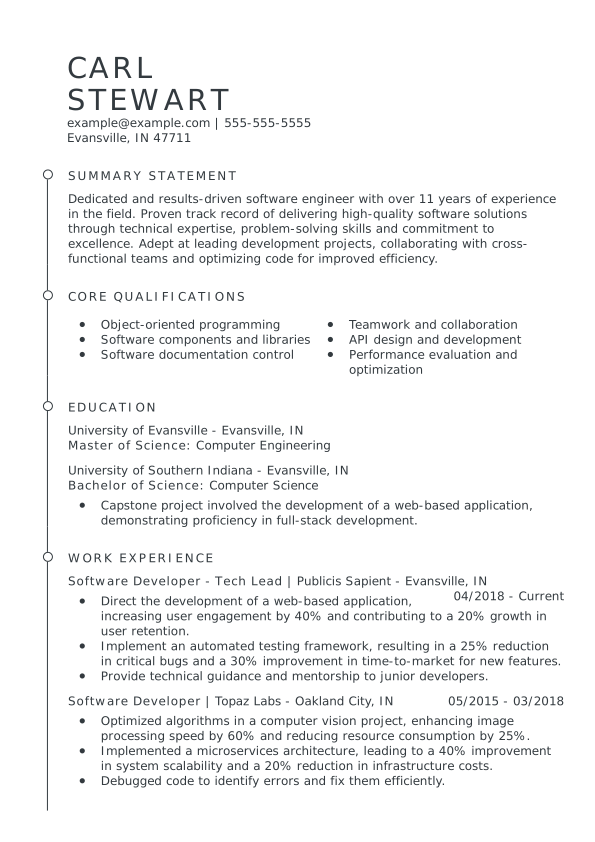
The timeline on the left side of the document makes it easy for recruiters to find each section and the information they seek. Its modern design makes it appropriate for roles in science and research.
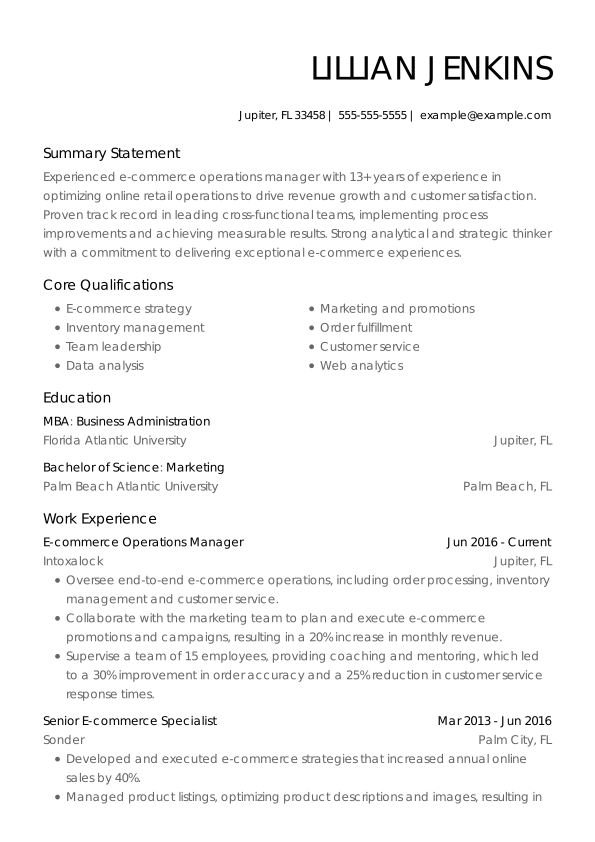
Clean
Why this MS Word CV template works:
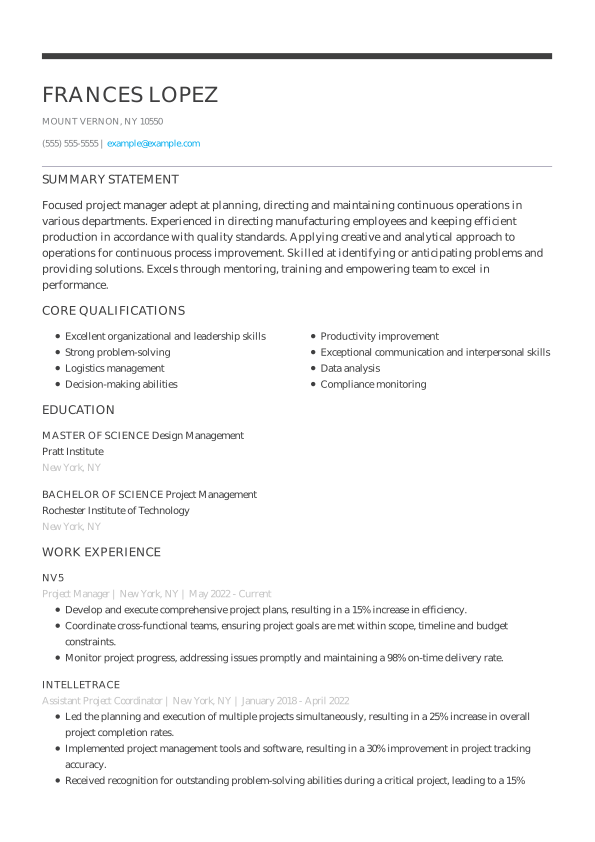
This CV template has plenty of white space, which makes it easier for recruiters to view without eye strain. Its two-column design separates information in a clear and helpful way.
Canvas
Why this MS Word CV template works:
The right alignment of the contact information helps draw a reader’s eyes to the resume summary statement. This allows recruiters to find the essential bits of your CV faster and gives this design a modern look.
Functional
Why this MS Word CV template works:
This Word CV has a classic and traditional style for buttoned-up jobs like accounting, administrative work, government or law. It’s a variation of a classic functional format, focusing more on your skills than work experience.
Organic
This MS Word CV design features a bright pop of color and clean organization. Its breezy modern feel makes it an excellent choice for applying to design, photography, production or tech jobs.
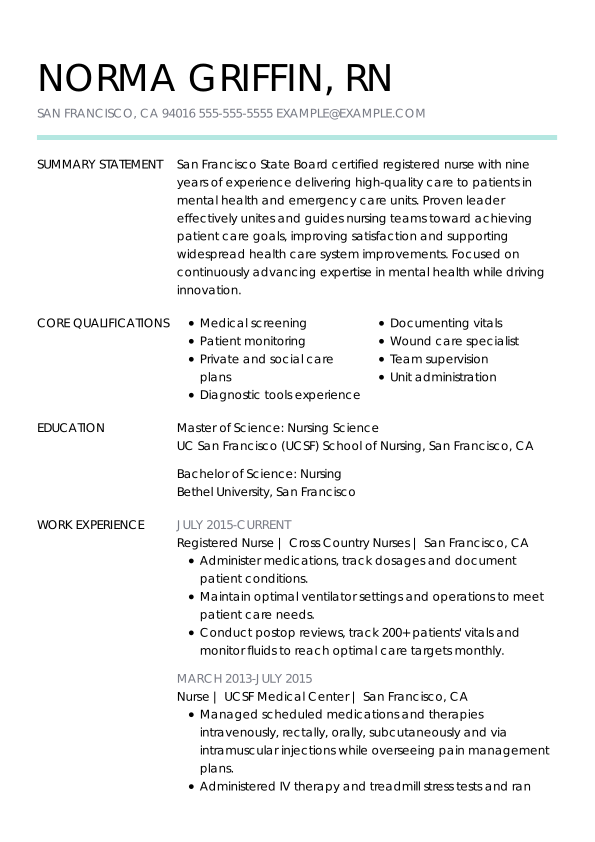
Becoming
Why this MS Word CV template works:
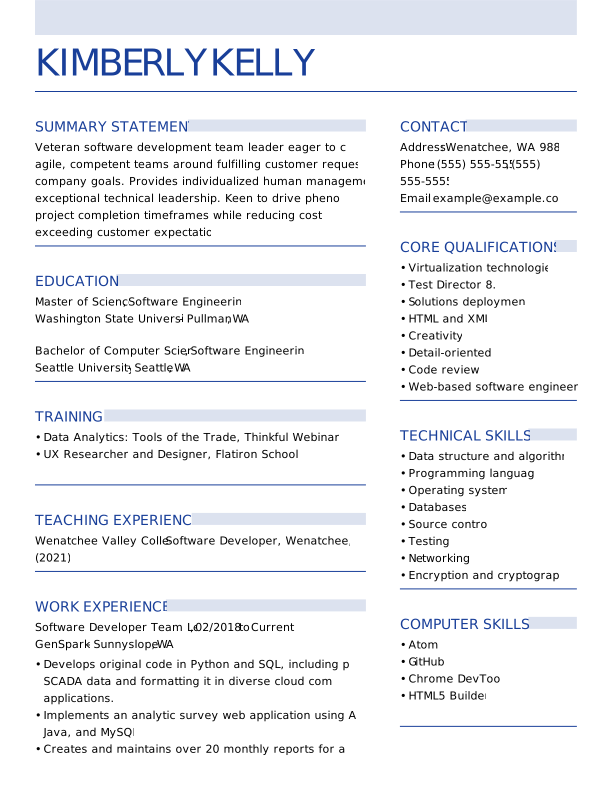
This tasteful CV template uses two kinds of fonts to differentiate section headings from the content. It also features a core qualifications section highlighting your top work skills and abilities.
Centered
Why this MS Word CV template works:
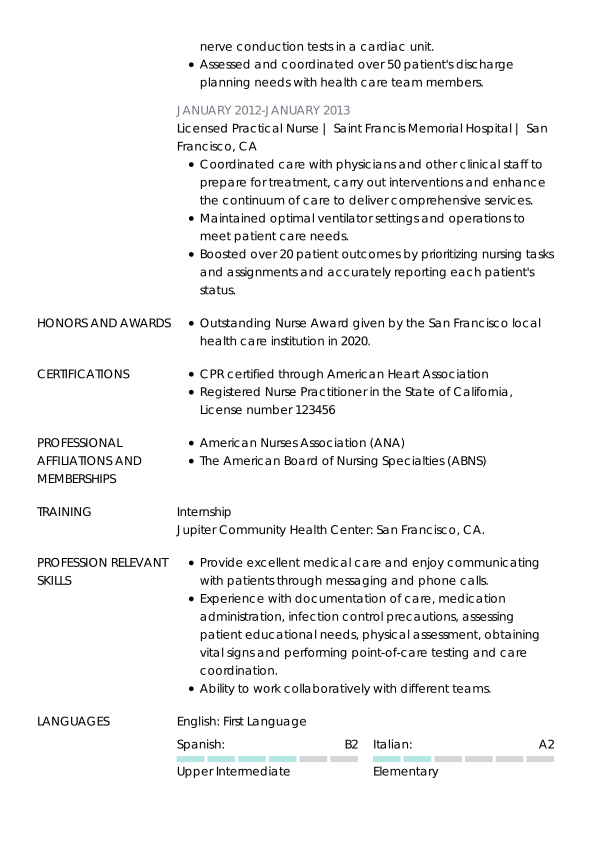
This CV’s rich green color evokes an ivy-covered college campus, making it perfect for applying for academic or professor roles. The education section, featured at the end of the resume, spotlights your scholastic work.
Decimal
Why this MS Word CV template works:
The clearly divided CV sections make it more likely to pass an applicant tracking system (ATS). Its clean and classic look makes it appropriate for many industries.
Nouveau
Why this MS Word CV template works:
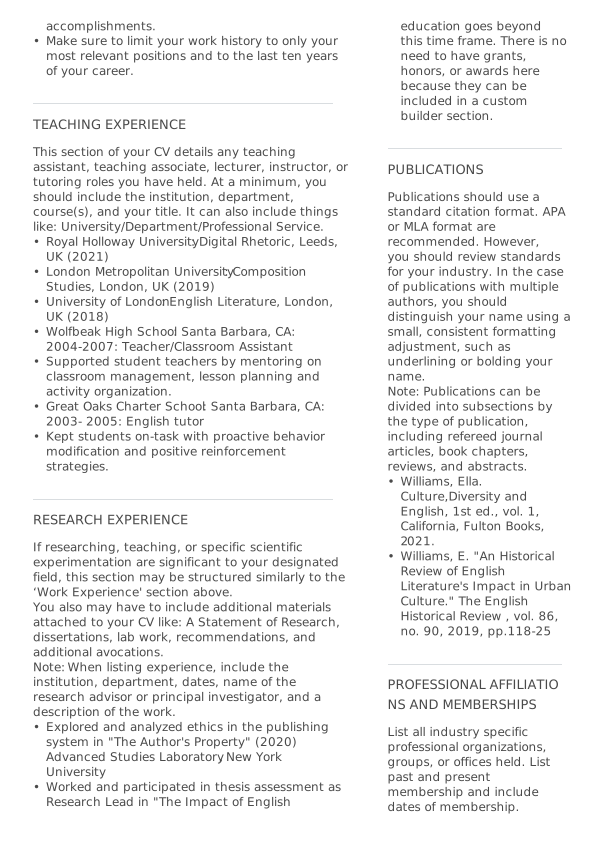
Since it features a two-column design and two dedicated skills sections, this CV template makes it easy to showcase your soft, hard and technical skills. There’s also room in the right column to add custom sections like awards or publications.
Finding free CV templates in Microsoft Word
You can find Word CV templates free to use in the program.
To locate them, follow these steps:
- Open Microsoft Word.
- Click “File,” then select “New from Template ..”
- Browse for a CV template. Or, type “CV” into the “Search All Templates” bar at the top right of the menu.
- Pick a template you like and double-click.
- Update the sample text with your personal information.
Uploading outside CV templates into Word
You can also open any template you download on this page or elsewhere on the internet, as long as it’s a Word DOC file.
To open it, double-click the CV template DOC file. If it doesn’t open in Word by default, right-click the document (on Mac: hold the “control” button + click) and go to “Open With.” Then, you can select Microsoft Word to open the CV template.
Alternatively, follow these steps:
- Open Microsoft Word.
- Click “File,” then select “Open …”
- Locate the DOC file you want to edit in Word.
- Select the file and click “Open” in the bottom right corner of the menu.
Once you’ve loaded your template, all you have to do is fill in your details!
Free CV template for Word
Here’s a CV template you can download and customize in Microsoft Word for free. Follow the instructions on each section of this CV template to write an effective curriculum vitae and land your next job.
- Customize your Word CV template.Use Word’s toolbar to personalize your template. You can adjust its colors, font or margins. Ensure the font size stays between 11-13, and use one-inch margins. You may also choose to add extra CV sections like “Certifications,” “Awards” or “Publications.”
- Check the job post or ad before writing!It’s much easier to know what to say in your CV if you review the job description. Look for keywords. Then, tailor your CV to include the keywords and skills the employer mentions. For example, feature communication skills more heavily when applying for human-centric roles, or list your impressive computer skills to land that dream tech job.
- Include as many numbers as possible on your CV.Numbers clearly show your work results, so hiring managers want to see them! Use quantifiable metrics in your CV’s professional summary and work experience sections. Doing so will capture the attention of hiring managers.
- Focus on achievements, not day-to-day duties.Your CV should advertise the academic or professional accomplishments you’re most proud of. So, when describing your academic or work history, focus more on the awards or benchmarks you’ve reached. The big picture is what matters, not your daily tasks.
- Use action verbs.Start sentences with strong action verbs describing your accomplishments and responsibilities. This technique helps to convey confidence and assertiveness in your achievements and work.
- Use spelling and grammar checks.Submitting a CV with errors could cost you a job! Microsoft Word will underline spelling mistakes in red and grammar problems in green.
However, when you finish your document, you should manually run the spelling and grammar check to ensure you’ve caught all errors. To do so, click the “Tools” tab at the top of the screen and then select “Spelling and Grammar” to run the check.
We also have an even more powerful tool for a more comprehensive review of your CV and its strengths. You can upload your document to our Resume Checker. It works on CVs too!
The Resume Checker will double-check your CV for grammatical errors, rate the strength of your CV’s writing and give you a score. Plus, it will provide suggestions for improvement!
Find Word CV Templates in our CV Builder
Our CV builder features 25+ CV templates for Word. It’ll help you create a winning CV in the following ways:
Graphic artists create our templates and care to create visually appealing designs appropriate for any job or industry. You won’t find them in Microsoft Word!
We’ve tested these designs to ensure they’re readable and pass an applicant tracking systems (ATS) scan. Apply confidently, knowing all our 25+ CV templates will pass an ATS.
Our Builder features user-friendly adjusting tools and automatic, making them the best choice for creating a CV with little to no effort.
Our Builder features user-friendly adjusting tools and automatic, making them the best choice for creating a CV with little to no effort.
Find a CV example for the job you want
Want some writing inspiration? You’ll need well-written content that matches your sleek new CV template! Our CV examples come with prewritten sections tailored to your desired role, so you can start applying and getting interviews in no time.
Key Takeaways
To recap the information found on this page:
- A curriculum vitae (CV) is a document used to apply for jobs and academic positions. It’s similar to a resume but typically more comprehensive.
- A CV template provides a professional design and structure, making it easy for you to focus on writing your CV.
- Professional designers create and test our templates to pass an ATS, ensuring your CV gets noticed by hiring managers.
- Microsoft Word offers a selection of built-in CV templates.
- Proven CV writing techniques, including using action verbs, quantifiable metrics, and showcasing achievements.
- You can use a CV Builder to get prewritten text suggestions for your CV.
If you want an extra edge, a well-written cover letter can make the difference between being overlooked and landing an interview.
Boost your chances of getting noticed with LiveCareer’s Cover Letter Builder. Craft a compelling package that includes a strong cover letter and your CV.
Generate my cover letter
If you want an extra edge, a well-written cover letter can make the difference between being overlooked and landing an interview.
Boost your chances of getting noticed with LiveCareer’s Cover Letter Builder. Craft a compelling package that includes a strong cover letter and your CV
Sources
FAQ
How to create a CV template using Word?
Creating a CV template using Microsoft Word is a straightforward process. Start by opening a new document in Word and formatting it with appropriate headings and sections such as contact information, professional summary, work experience, education, skills and any additional sections. You can customize fonts, colors and layout to suit your preferences. Once you’ve designed your template, save it as a reusable document.
How long should a CV be?
The ideal CV length varies depending on your level of experience and industry norms. Generally, a standard CV should be two pages for most job seekers. However, individuals with extensive experience in academic fields may require a longer CV, spanning three or more pages. Focus on including relevant information highlighting your qualifications and achievements while keeping the document concise and easy to read.
Should I Include a photo in my CV?
Including a photo in a CV is a matter of personal preference and varies based on cultural norms and industry standards. In some countries in Europe and the entertainment industry worldwide, including a professional headshot is standard practice. However, for most roles in the United States, including a photo in your CV is unnecessary and even discouraged.
Before adding a photo to your CV, research the expectations and preferences of employers in your target market to determine whether it’s appropriate.
How to write a cover letter for a CV?
Writing a compelling cover letter to accompany your CV is essential for making a strong impression on potential employers. Start by addressing the hiring manager by name and introducing yourself and your interest in the position. Customize the content of your cover letter to highlight specific experiences, skills, and achievements that align with the job requirements. Use a professional tone, and conclude by expressing your enthusiasm for the opportunity and willingness to discuss further in an interview. For more inspiration on customizing your cover letter for a particular job, check out our library of cover letter examples.
What is the difference between a resume and a CV?
Understanding the differences between a resume and a CV is crucial when navigating the job search. One application document may be more appropriate depending on your career goals and target job market.
Resumes are concise summaries of a person’s education, skills, experiences and career achievements. In the United States, resumes are the standard document for most job applications. They are typically limited to one or two pages and are highly customizable, allowing applicants to highlight specific achievements relevant to the position.
Curriculum Vitae (CV), on the other hand, are more comprehensive and detailed, providing a thorough overview of one’s career history, academic achievements, publications, presentations, awards and more. CVs are best for academic, scientific, research, and medical fields, as well as in countries outside the United States. Compared to resumes, CVs can span several pages and are less customizable due to their comprehensive nature.
How We Reviewed This Article
Over the past 15 years, we’ve helped more than 10 million job seekers build stronger cover letters, discover their career paths, interview confidently, and boost their chances of finding the right job faster. Review our Editorial Policy to learn more about our process.
About the Author
Gabriela Hernandez • CPRW, Career Advice Writer
Gabriela is a Certified Professional Resume Writer (CPRW) and member of the Professional Association of Resume Writers & Career Coaches. She focused on helping job seekers improve their professional resumes to highlight their unique skills and experience. Gabriela holds a BA in journalism from the University of Puerto Rico and brought more than four years of specialized experience to helping candidates navigate the complexities of the online job market, with a strong focus on resume optimization and effective self-presentation.
Ready to
land the job?
Join 28M+ others who’ve built a professional CV.



 Add LiveCareer as a preferred source on Google